Help
User guide
Contents
1. What is GuardMyWay?
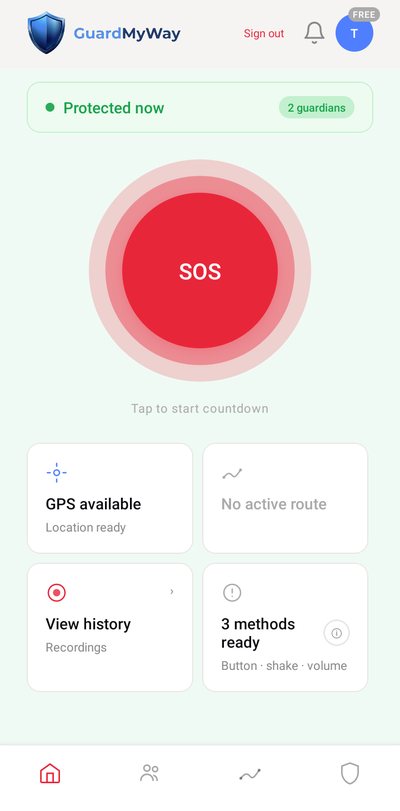
GuardMyWay is a personal safety app. With a single gesture you trigger a Code Red: the app records audio, shares your live location and alerts your guardians straight away.
It is designed for moments when you feel vulnerable: getting home at night, in quiet areas, in sudden risky situations where you have no time to call or warn anyone. Your guardians will try to reach you and, if they cannot, they can contact the authorities right away and share your location.
2. Getting started
Sign up
Add guardians
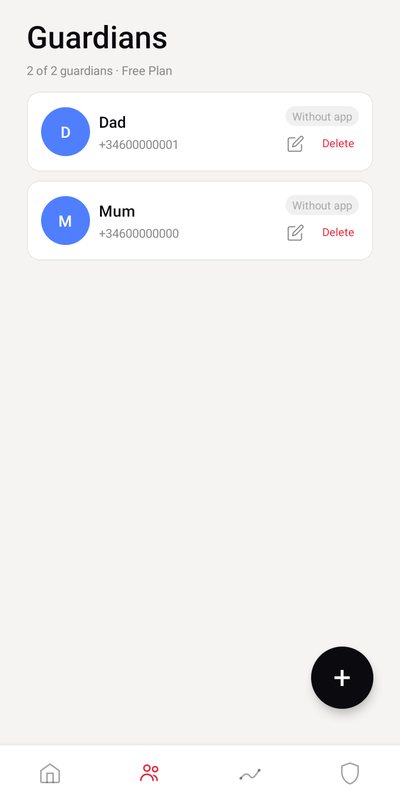
Go to the Guardians tab and add at least one trusted person with their name and phone number (email is optional). Your guardian needs GuardMyWay installed to get your alerts. If you have no guardians, the app warns you before triggering a Code Red, because nobody would get your alert.
3. Code Red (SOS)
Code Red is GuardMyWay's main feature. You can trigger it in three ways:
How to trigger it
- SOS button — tap the red button on the home screen.
- Shake — shake your phone firmly for a moment. Normal movements (walking, putting it in your pocket, leaving it on a table) do not trigger it. Needs the app open on screen.
- Volume keys — press a volume key three times in a row (within 2 seconds). Useful when you cannot look at the screen. One or two presses only change the volume. If the volume is at maximum, use volume down. While you listen to a recording, the volume keys do not trigger the SOS. Needs the app open on screen.
What happens when it is triggered?
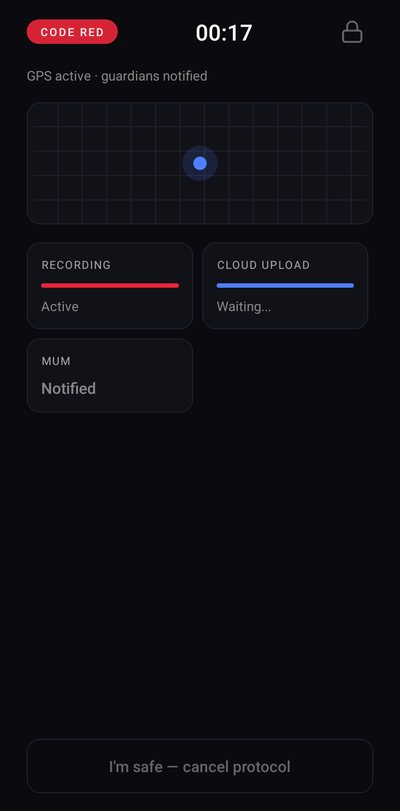
- The app starts recording audio automatically.
- GPS turns on and your guardians see your live location.
- Your guardians get a push notification with your location.
- Recordings are uploaded in chunks: the first after 10 seconds and then every 30 seconds.
- On the Code Red screen there is a button to call the emergency services (112 in Spain and the EU): it opens the phone dialer with the number already typed, so you only have to press call.
- The Siren button plays a siren at full volume with a voice calling for help, to draw the attention of anyone nearby. Tap it again to stop it.
- Share location sends your position by WhatsApp, SMS or any other app to anyone you choose, even if they are not your guardian.
- Without a good mobile connection, everything still works offline: the app keeps the audio on your phone and syncs it when the connection improves or comes back. Note: GPS keeps recording on the device, but your guardians cannot see it live until the connection is back.
4. Phone locked or app in the background
Once Code Red is on, you can minimise the app, turn the screen off or lock your phone. This is what happens:
✅ Keeps working with the phone locked
- Live location — your guardians keep seeing where you are.
- Audio recording — carries on with the screen off.
- Persistent notification — Android shows a notice in the status bar so the system does not close the app.
5. How to cancel the SOS
To cancel a Code Red, press the green "I'm safe — cancel protocol" button. Your guardians are told straight away that you are safe. The app asks you to authenticate to confirm it is really you:
- Fingerprint
- Face recognition
- Unlock pattern
- PIN or passcode
It uses whatever method you have set up on your phone. If you have none, cancelling is immediate.
Cancel and duress PIN
In Privacy → Cancel and duress PIN you can choose two different PINs. From then on, cancelling a Code Red asks for your PIN instead of your fingerprint or pattern:
- Your normal PIN really cancels the Code Red and your guardians are told you are safe.
- Your duress PIN takes the screen back to Home as if it had been cancelled, but location and audio carry on in secret (audio is uploaded every 10 seconds) and your guardians get a "still in danger" alert. Their screen tells them you are under duress and that they should not call or text you, so as not to give you away.
To close it for real later, press the red button on Home and enter your normal PIN. If the app is closed or the phone switches off, it carries on in secret when the app is opened again, without showing anything.
6. Guardians
Guardians are the trusted people who get your SOS alerts.
Requirements
- Your guardian must have GuardMyWay installed and an account created with the same phone number you type when adding them.
- In your list, each guardian shows as "With app" (they will get your alerts) or "Without app" (they will not get anything yet).
- If you get the number wrong, your alerts will never reach them: check it carefully (country and number) and, if you can, add their email too.
- If your guardian does not have the app yet, tap Invite next to their name: WhatsApp or SMS opens with a message and the download link already written.
- The ? button on the Guardians screen explains all this inside the app.
What does your guardian see when you trigger an SOS?
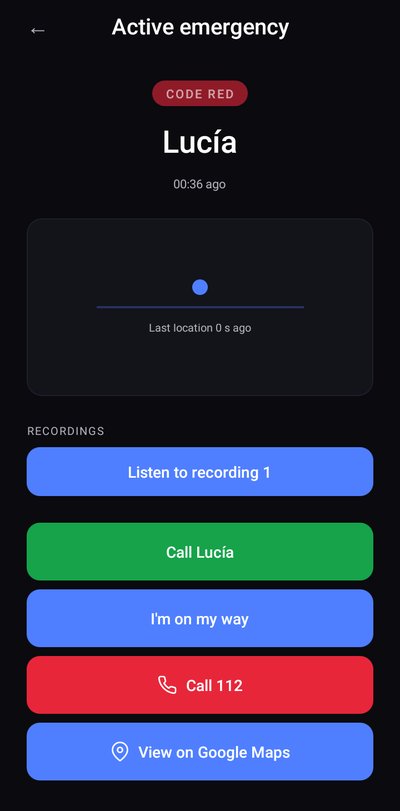
- A push notification with your name and location.
- They can open the app and see your GPS position live.
- They can confirm they are coming with the "I'm on my way" button.
- They can call the emergency services from the same screen, with your location in front of them.
- If you cancelled with the duress PIN, they see an amber box "Under duress: still in danger" and the button to call you is hidden.
- Depending on your plan (the plan of the person who triggers the SOS counts, not the guardian's), they can listen to the audio inside the app: with Plus, while the Code Red lasts; with Family, also your recordings from the last 90 days, which they can download too.
Guardian limit by plan
- FREE Up to 2 guardians
- PLUS Up to 5 guardians
- FAM Up to 10 guardians
7. Safe routes
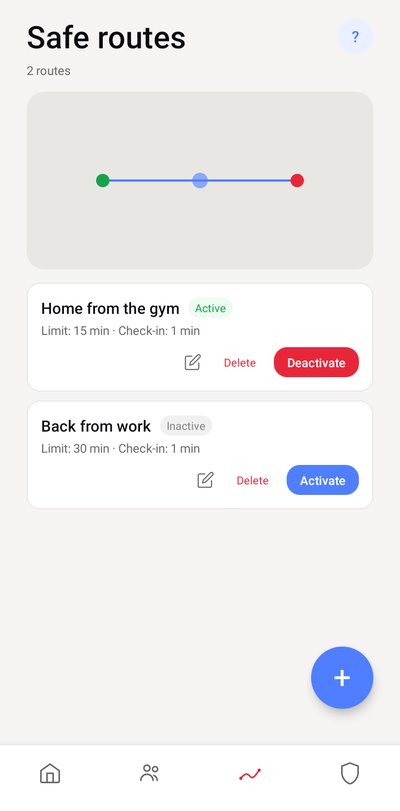
Safe routes are a check-in for specific journeys: getting home, leaving work at night, going on a date…
How they work
Example
You create a route "Back from work" with a 30-minute time limit and start it when you leave. When you get home, open the app and turn it off, or answer "Yes, I'm ok" when asked. If you have not answered after 30 minutes, your guardians get an alert so they try to reach you.
8. Plans
- Unlimited Code Red
- Up to 2 guardians
- Live location for your guardians
- Recordings kept 7 days
- Only you can listen to your recordings; your guardians have no access
- Everything in Free
- Up to 5 guardians
- Your guardians listen to the audio while the Code Red lasts
- Recordings kept 30 days
- Everything in Plus
- Up to 10 guardians
- Recordings kept 90 days
- Your guardians listen to and download your recordings from the last 90 days
Your recordings
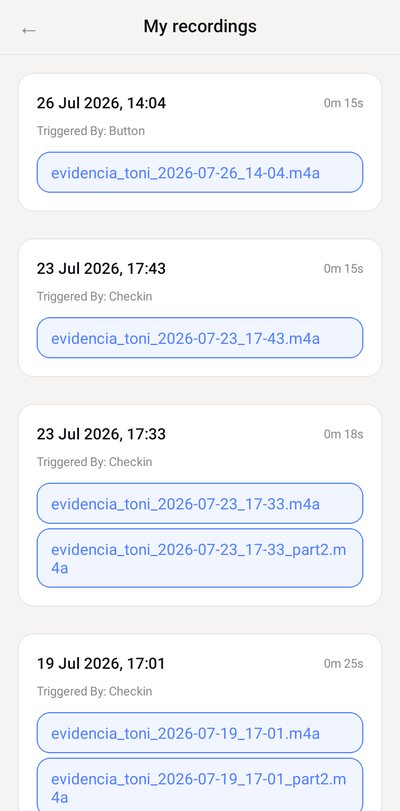
On any plan you can listen to your recordings from Home → View history. Each Code Red shows its date, duration and how it was triggered, split into audio chunks. Tap ▶ to play it in the app or "Download" to save the file. Recordings are deleted automatically after 7, 30 or 90 days, depending on your plan.
9. Permissions and privacy
GuardMyWay asks for several permissions on your phone. This is what each one is for:
📍 Location (always)
Needed to record and share your GPS position during a Code Red. It is only used while an SOS is running: we do not record your location at any other time.
🎙 Microphone
Needed to record audio during a Code Red as evidence. It only records while an SOS is active. Recordings are stored on secure servers and only you (and your guardians, depending on your plan) can access them.
🔔 Notifications
Needed so your guardians get SOS alerts and so you get confirmations when a guardian is coming to help.
🔕 Do Not Disturb access
Lets SOS alerts ring and vibrate like an incoming call, even if your guardian has their phone on silent or Do Not Disturb. It is optional but highly recommended: without it, your guardian might miss an emergency if their phone is silenced.
🔋 Battery optimisation
Some manufacturers (especially Xiaomi, Huawei and some Samsung models) aggressively restrict apps in the background to save battery, which can block SOS notifications. We recommend choosing "No restrictions" for GuardMyWay when the app asks, so alerts always arrive, whether you trigger the SOS or you are someone's guardian. It is optional, but very important for the app to do its safety job reliably.
Privacy tab in the app
In the app's Privacy tab you will find this user guide, Help and feedback (it opens an email to our team with your app version and phone details, so we can help you better), the cancel and duress PIN (see How to cancel the SOS), the privacy policy and the Delete account option, which deletes your account and all your data (how it works).
You can read our full privacy policy for more details.
10. What to test as a tester
Thank you for taking part in the beta test. These are the things we would most like you to try:
- Sign-up and permissions — is signing up clear? Are the permissions well explained? Make sure you allow Do Not Disturb access and turn off battery optimisation when the app asks.
- Add a guardian — find another tester and add each other as guardians.
- Code Red with the button — trigger it and cancel it. Does your guardian get the notification?
- Code Red with a shake — with the app on screen, shake your phone firmly for a moment. Does the 3-second countdown appear? (Walking or leaving it on a table must not trigger it.)
- Code Red with volume — with the app on screen, press a volume key three times in a row. Does the countdown appear? (One or two presses must do nothing.)
- Call emergency services — during a Code Red, tap the emergency call button and check the dialer opens with the number typed. Do not press call.
- Play recordings — in Home → View history, tap ▶ on a recording. Does it play inside the app?
- Password recovery — on the sign-in screen, tap "Forgot your password?", enter your email and follow the link you get by email to set a new password. Check your spam folder if it does not arrive within a few minutes.
- Alert with the phone on silent — ask your guardian to put their phone on silent or Do Not Disturb, and even close the app completely, then trigger a Code Red. Does the alert still ring and vibrate, even with the app closed?
- SOS with the app minimised — trigger a Code Red and minimise the app. Check the persistent notification appears in the status bar and that your guardian keeps seeing your updated location.
- SOS offline — turn on airplane mode, trigger the SOS, wait 30 seconds, cancel, turn airplane mode off. Check in the app that the SOS appears in your history and that the audio recordings have been uploaded.
- Safe route — create a route with a short time limit (5 min), start it, lock your phone and do not touch it. Does your guardian get the "… hasn't confirmed they arrived safely" alert a few minutes after the limit? Then unlock and answer "Yes, I'm ok".
- Guardian view — when the person you protect triggers an SOS, open the app and check you can see their location.
- Duress PIN — set up both PINs in Privacy, trigger a Code Red and cancel it with the duress one. Does the app go back to Home looking normal? Does your guardian get the "still in danger" alert? Then close it with the red button and your normal PIN.
- Siren and share location — during a Code Red, try the siren (preferably with nobody around) and share your location with yourself on WhatsApp.
- Invite a guardian — add someone who does not have the app and tap Invite. Does WhatsApp or SMS open with the message and the link?